
Aurora Guide for Picketing
How to use Aurora for picketing: start a session, work your route, and log every property before you move on.
Aurora also marks each property's service tier (Standard, Supreme or Snowbirds), which tells you which picket goes on it.
1. Start your session
Open Consumables and set up your day. Tap the wrench-and-screwdriver button on the right side of the map.
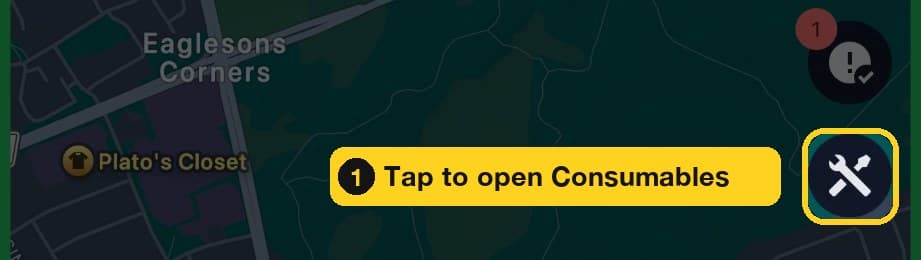
Then work down the Consumables screen:
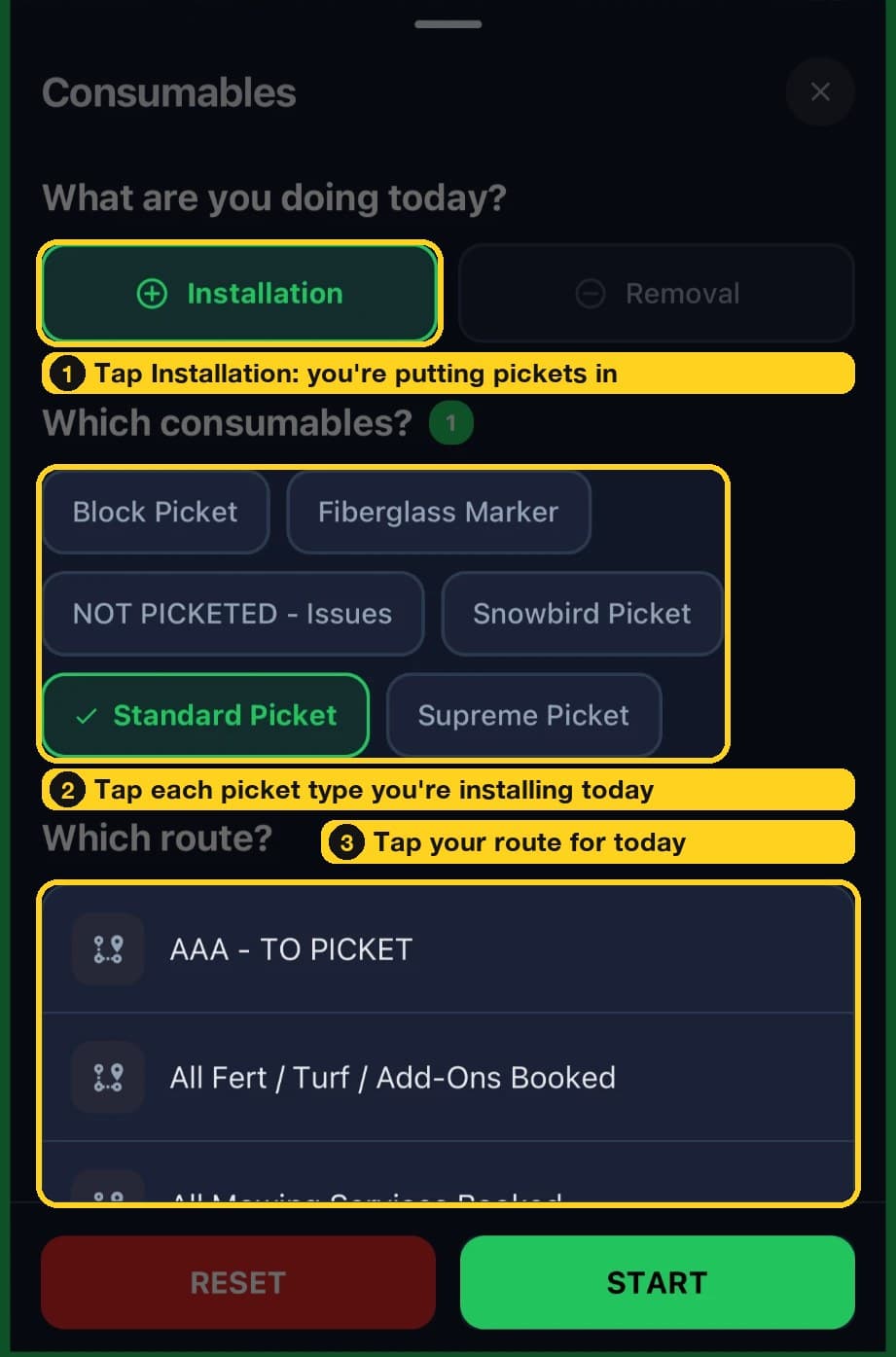
- 1
Tap Installation. It records the pickets you're putting in. Removal is the other choice.
- 2
Tap each picket type you're installing today: Standard Picket, Supreme Picket, Snowbird Picket, Block Picket or Fiberglass Marker (the fiber rod). The green number shows how many you picked. Choose NOT PICKETED - Issues for a property you couldn't picket, and say why in Notes.
- 3
Tap your route in the list.
- 4
Tap START. RESET clears your choices.
2. Work your route
The map shows your route. The bar at the bottom shows what you're doing and how far along you are.
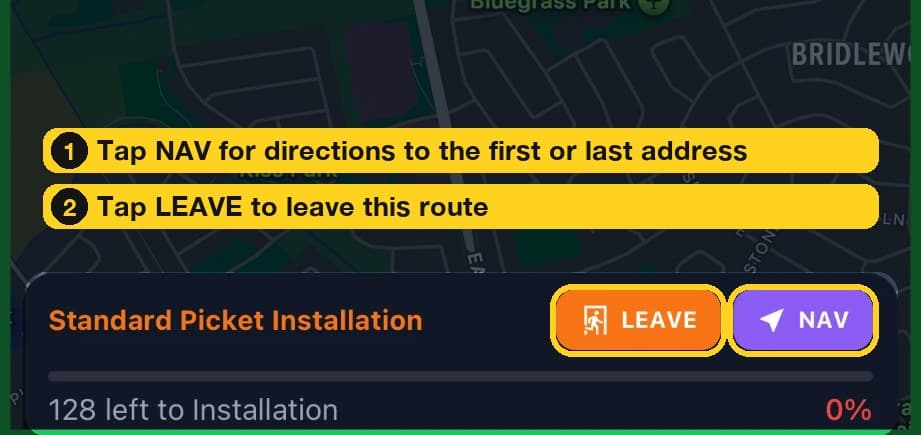
- 1
NAV (purple button). Gives you directions to the first or last address on your route.
- 2
LEAVE (orange button). Leaves the current route.
The bar also shows the job you started (here, Standard Picket Installation) and how many properties are left (here, 128) with the percentage done.
3. Log each property
Tap a property on the map to open it, then record what you installed. The tags under the address describe the property (here Interlock, Residential, 1.5 Driveway - Side Street).
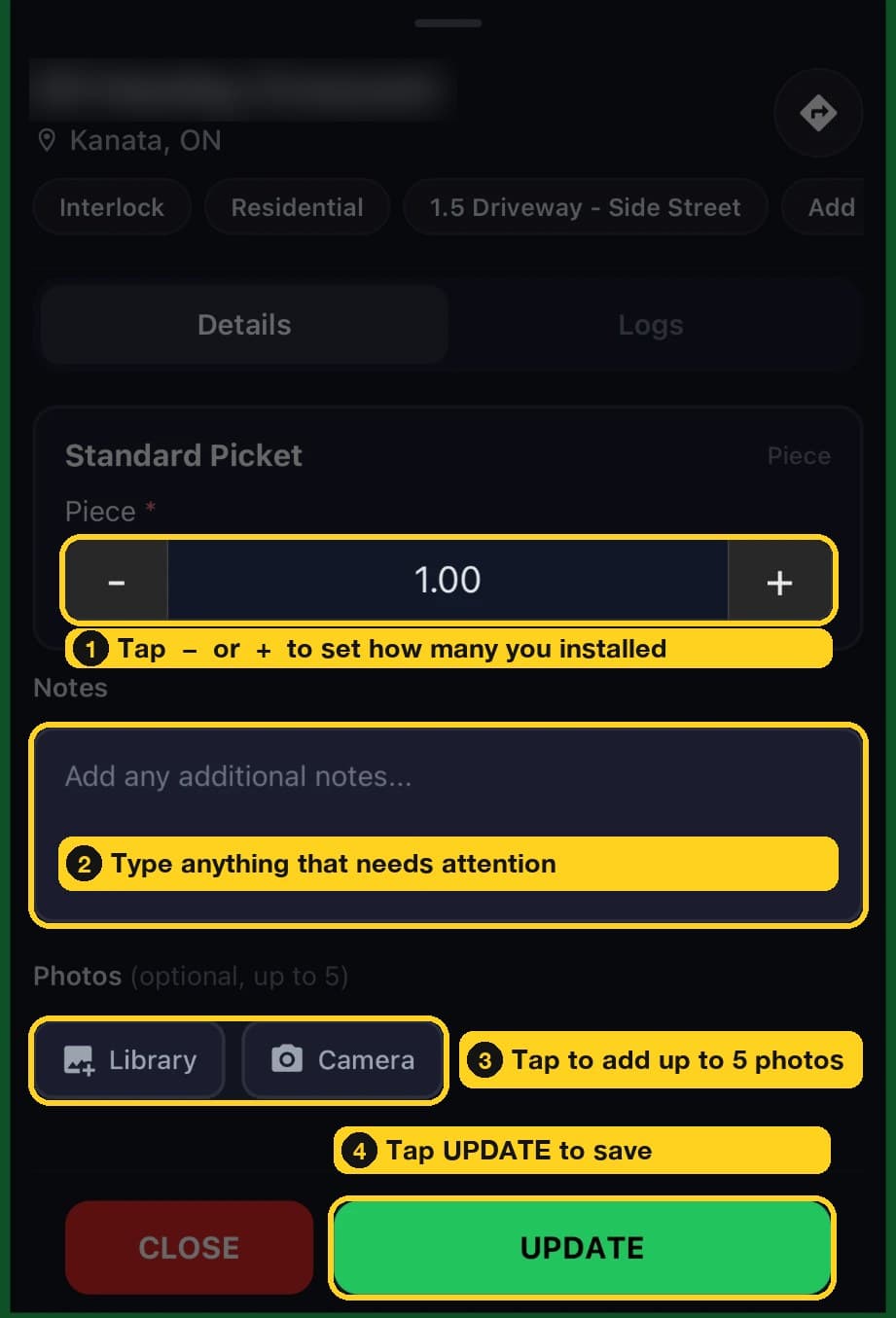
- 1
Piece. The card above it shows the picket for this property (here, Standard Picket). Tap the minus and plus buttons to set how many you installed.
- 2
Notes. Type anything that needs attention - office will be looking through Notes updates.
- 3
Photos. Tap Camera or Library to add up to 5. At every property, take the main photo in front of the house, facing the house, with all pickets visible + any before season damage on customer's property.
- 4
UPDATE. Tap it to save.
Remember at every property
- Log consumables. Set the Piece count on the card for everything you used.
- Photo every property. Take the main photo in front of the house, facing the house, with all pickets visible, and save it in Aurora.
- Needs attention? Note it in Notes in Aurora. If the customer can fix it themselves, also leave a “Please fix” door hanger.
- Damage? Take an extra picture of the house, driveway or stones around it and upload it to Aurora picketing.
- Call the office if a driveway has the wrong size in the system, or a major obstacle (for example low-hanging branches) would stop an operator from servicing the property.